
How to use Managed Identity to connect to Azure, Exchange, Graph, Intune,... in Azure Automation Runbook
Updated 6.6.2024
Managed Identity is definitely a better option for authentication in Azure Automation Runbooks than the RunAs account because it doesn't require certificate/secret renewal. Therefore it is maintenance-free. However, it took me a while to figure out how to use it to connect to various Azure services like Azure, Exchange, Graph API, Intune,...Moreover, some of the modules we are used to use don't work quite right with it. Therefore I decided to put all the information I was able to find on the internet plus my personal experience into this blog post.
For the sake of this post, I assume you have created an Azure Automation account with enabled Managed Identity.
Before we begin
You will need to define these variables in your PowerShell console before continuing. Of course, use IDs from your environment.
# display name of the automation account
$automationAccountDisplayName = "myautomationaccountname"
# ObjectID of the System assigned (Managed identity)
$MSIObjectID = "bd5009b5-...-236e7f103696"
# AppID of the Enterprise application that represents System assigned (Managed identity)
$MSIAppId = "9905d24f-...-17cc71ea7d9a"
How to add PS module to Azure Automation account
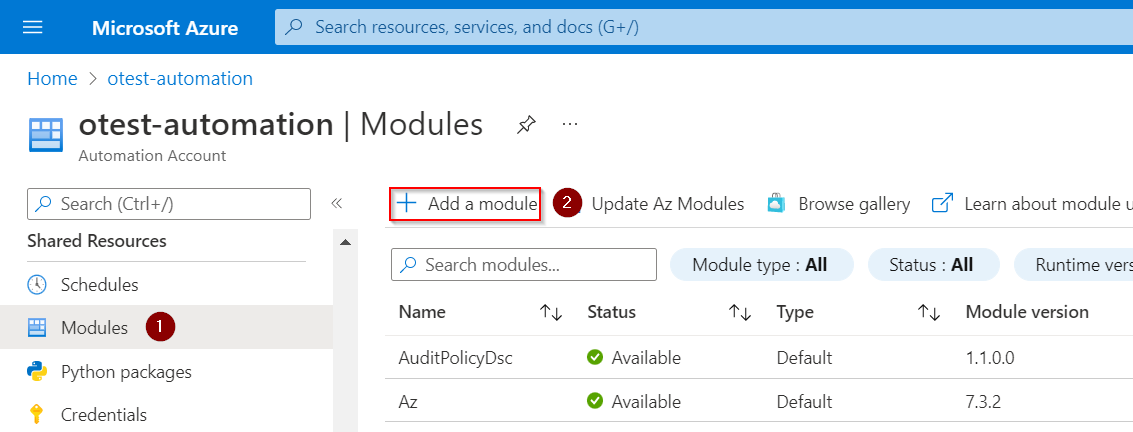
In this post, I mention several PS modules that are not available by default in the new Automation Account. To add a new module use 👇 or even better check this article to get automated solution.
AzureAD (using Connect-AzAccount)
- Connect to AzureAD using AZ module
Set permissions
- Add
Managed identityaccount to any Directory role you need (Security Reader or Directory Reader roles should be fine if you don't need to change anything)
Connect
Connect-AzAccount -Identity
Get some data
Get-AzADUser -UserPrincipalName "john@contoso.com"
AzureAD (using Connect-AzureAD)
- Connect to AzureAD using the AzureAD module
AzureAD module shouldn't be used, because AAD Graph will be deprecated soon. Use Connect-AzAccount instead.
Set permissions
- Add
Managed identityaccount to any Directory role you need (Security Reader or Directory Reader roles should be fine if you don't need to change anything)
Connect
$azureContext = Connect-AzAccount -Identity
$azureContext = Set-AzContext -SubscriptionName $azureContext.context.Subscription -DefaultProfile $azureContext.context
$graphToken = Get-AzAccessToken -ResourceUrl "https://graph.microsoft.com/"
$aadToken = Get-AzAccessToken -ResourceUrl "https://graph.windows.net"
Connect-AzureAD -AccountId $azureContext.account.id -TenantId $azureContext.tenant.id -AadAccessToken $aadToken.token -MsAccessToken $graphToken.token
Get some data
Get-AzureADUser -SearchString "john"
Exchange Online
Set permissions
To work with Exchange, the account needs Exchange application permission
Exchange.ManageAsAppand Azure Directory roleExchange Administratoror EXO management role (built-in or a custom one). Both can be set using the code below.
Connect-MgGraph
$EXOServicePrincipal = Get-MgServicePrincipal -Filter "displayName eq 'Office 365 Exchange Online'"
$Approle = $EXOServicePrincipal.AppRoles.Where({ $_.Value -eq 'Exchange.ManageAsApp' })
# assign Exchange.ManageAsApp permission
New-MgServicePrincipalAppRoleAssignment -ServicePrincipalId $MSIObjectID -PrincipalId $MSIObjectID -AppRoleId $Approle.Id -ResourceId $EXOServicePrincipal.Id


# 1. add to 'Exchange Administrator' role
$AADRole = Get-MgDirectoryRole | where DisplayName -EQ 'Exchange Administrator'
$DirObject = @{
  "@odata.id" = "https://graph.microsoft.com/v1.0/directoryObjects/$MSIObjectID"
}
New-MgDirectoryRoleMemberByRef -DirectoryRoleId $AADRole.Id -BodyParameter $DirObject


# 2. create custom EXO management role and assign it to our managed identity
# https://blog.nathanmcnulty.com/azure-automation-advanced-auditing/

# Connect to Exchange Online
Connect-ExchangeOnline

# get list of all EXO management roles
#Get-ManagementRole

# Create linked Service Principal
New-ServicePrincipal -AppId $MSIAppID -ServiceId $MSIObjectID -DisplayName "IT_EnableO365AdvancedLogging"

# Create new Management role
New-ManagementRole -Name "Mailbox Auditing" -Parent "Audit Logs" -Verbose

# Remove unnecessary permissions
Get-ManagementRoleEntry "Mailbox Auditing\*" | Where-Object { $_.Name -notin "Get-Mailbox" } | ForEach-Object { Remove-ManagementRoleEntry -Identity "Mailbox Auditing\$($_.Name)" -Verbose -Confirm:$false }

# Add limited Set-Mailbox permissions
Add-ManagementRoleEntry -Identity "Mailbox Auditing\Set-Mailbox" -Parameters "Identity", "AuditAdmin", "AuditDelegate", "AuditOwner", "AuditLogAgeLimit", "AuditEnabled"

# Create a Role Group, add our custom Mailbox Auditing role, and add our Service Principal as a member
New-RoleGroup "Advanced Auditing Management" -Description "Limited scope for Azure Automation to set Advanced Auditing entries" -Roles "Mailbox Auditing" -Members $MSIObjectID -Confirm:$false -Verbose
Connect
More info at the official documentation
NEW ExchangeOnlineManagement V3 module way (REST API)
Connect to Exchange using the ExchangeOnlineManagement V3 module which is the preferred and easier way!
$tenantDomain = "contoso.onmicrosoft.com" # Domain of the tenant the managed identity belongs to
Connect-ExchangeOnline -ManagedIdentity -Organization $tenantDomain
OLD Exchange Online PowerShell V2 module way (OAuth)
Avoid this connection option if possible and use the previous V3 version instead! Connects to Exchange Online using AZ module and OAuth token.
$tenantDomain = "contoso.onmicrosoft.com" # Domain of the tenant the managed identity belongs to
#region functions
function makeMSIOAuthCred () {
    $accessToken = Get-AzAccessToken -ResourceUrl "https://outlook.office365.com/"
    $authorization = "Bearer {0}" -f $accessToken.Token
    $Password = ConvertTo-SecureString -AsPlainText $authorization -Force
    $tenantID = (Get-AzTenant).Id
    $MSIcred = New-Object System.Management.Automation.PSCredential -ArgumentList ("OAuthUser@$tenantID", $Password)
    return $MSICred
}

function connectEXOAsMSI ($OAuthCredential) {
    #Function to connect to Exchange Online using OAuth credentials from the MSI
    $psSessions = Get-PSSession | Select-Object -Property State, Name
    If (((@($psSessions) -like '@{State=Opened; Name=RunSpace*').Count -gt 0) -ne $true) {
        Write-Verbose "Creating new EXOPSSession..." -Verbose
        try {
            $Session = New-PSSession -ConfigurationName Microsoft.Exchange -ConnectionUri "https://outlook.office365.com/PowerShell-LiveId?BasicAuthToOAuthConversion=true&email=SystemMailbox%7bbb558c35-97f1-4cb9-8ff7-d53741dc928c%7d%40$tenantDomain" -Credential $OAuthCredential -Authentication Basic -AllowRedirection
            $null = Import-PSSession $Session -DisableNameChecking -CommandName "*mailbox*", "*unified*" -AllowClobber
            Write-Verbose "New EXOPSSession established!" -Verbose
        } catch {
            Write-Error $_
        }
    } else {
        Write-Verbose "Found existing EXOPSSession! Skipping connection." -Verbose
    }
}
#endregion functions

$null = Connect-AzAccount -Identity
# connect using Managed Identity (but using basic auth!)
connectEXOAsMSI -OAuthCredential (makeMSIOAuthCred)
Get some data
Get-Mailbox "john"

# don't forget to disconnect the Exchange session to avoid throttling (there is a limit to open session)
Get-PSSession | Remove-PSSession # for old V2 connections
Disconnect-ExchangeOnline -Confirm:$false # for new V3 connections
Sharepoint Online
Connect to Sharepoint Online using PnP.PowerShell module
This original and very good post where I found the information below 👇
At present, only permissions can be granted to the Microsoft Graph and not to the SharePoint APIs, which effectively means that most of the PnP PowerShell cmdlets will not work. Only those solely and directly communicating with the Microsoft Graph, will be authorized to work, such as but not limited to: Get-PnPAzureAdUser, Get-PnPMicrosoft365Group, and Get-PnPTeamsTeam.
Set permissions
Required permissions depend on your needs, so for example, when you just want to read groups, you can grant permissions like this.
Connect-AzAccount
$graphServicePrincipal = Get-AzADServicePrincipal -SearchString "Microsoft Graph" | Select-Object -First 1
$appRole = $graphServicePrincipal.AppRole | Where-Object { $_.AllowedMemberType -eq "Application" -and $_.Value -eq "Group.Read.All" }
Add-AzADAppPermission -ObjectId $MSIObjectID -ApiId $graphServicePrincipal.AppId -PermissionId $appRole.Id -Type 'Role'
Connect
Connect-PnPOnline -ManagedIdentity
Get some data
Get-PnPMicrosoft365Group
Graph API (Azure)
- For whatever reason this method doesn't work for Intune Graph requests, therefore Intune is in a separate paragraph
Set permissions
- Required permissions depend on your needs, so for example, when you just want to read users (User.Read.All) and groups (Group.Read.All), you can grant permissions like this (run commands below in your PowerShell console).
# list of all Graph permissions + description https://graphpermissions.merill.net/index.html
$permissionList = 'Group.Read.All', 'User.Read.All'
# get Graph API app
$resourceSP = Get-MgServicePrincipal -Filter "startswith(DisplayName,'Microsoft Graph')" | Select-Object -First 1

foreach ($permission in $permissionList) {
    $AppRole = $resourceSP.AppRoles | Where-Object { $_.Value -eq $permission -and $_.AllowedMemberTypes -contains "Application" }
    if (!$AppRole) {
        Write-Warning "Application permission '$permission' wasn't found in '$resourceAppId' application. Therefore it cannot be added."
        continue
    }

    New-MgServicePrincipalAppRoleAssignment -AppRoleId $AppRole.Id -ResourceId $resourceSP.Id -ServicePrincipalId $MSIObjectID -PrincipalId $MSIObjectID
}
There are two main ways how to interact with the Graph API. Using the official PS Microsoft.Graph.Authentication module (Connect-MgGraph way) and using web request (Invoke-RestMethod way). I will show you both.
Connect-MgGraph way
Requires Microsoft.Graph.Authentication module
More info at devblogs.microsoft.com 👈
Connect
# using 2.x.x version of Microsoft.Graph.Authentication module
Connect-MgGraph -Identity

# using 1.x.x versions of Microsoft.Graph.Authentication module
Connect-AzAccount -Identity
$token = (Get-AzAccessToken -ResourceTypeName MSGraph).token # Get-PnPAccessToken if you are already connected to Sharepoint
Connect-MgGraph -AccessToken $token
Get some data
Invoke-MgGraphRequest -method GET -Uri "https://graph.microsoft.com/v1.0/users/" -OutputType PSObject

Get-MgContext
Invoke-RestMethod way
- Requires Microsoft.Graph.Authentication module
Connect
Connect-AzAccount -Identity
$token = (Get-AzAccessToken -ResourceTypeName MSGraph).token # Get-PnPAccessToken if connected to Sharepoint already
$header = @{
    "Content-Type" = "application/json"
    Authorization  = "Bearer $token"
}
Get some data
Invoke-RestMethod -Uri "https://graph.microsoft.com/v1.0/users/" -Method Get -Headers $header
Graph API (Intune)
Set permissions
- Required permissions depend on your needs, so for example, I will grant read permissions to most of the Intune parts like this (run commands below in your PowerShell console).
# list of all Graph permissions + description https://graphpermissions.merill.net/index.html
$permissionList = 'Device.Read.All', 'DeviceManagementApps.Read.All', 'DeviceManagementConfiguration.Read.All', 'DeviceManagementManagedDevices.Read.All', 'DeviceManagementRBAC.Read.All', 'DeviceManagementServiceConfig.Read.All'
# get Graph API app
$resourceSP = Get-MgServicePrincipal -Filter "startswith(DisplayName,'Microsoft Graph')" | Select-Object -First 1

foreach ($permission in $permissionList) {
    $AppRole = $resourceSP.AppRoles | Where-Object { $_.Value -eq $permission -and $_.AllowedMemberTypes -contains "Application" }
    if (!$AppRole) {
        Write-Warning "Application permission '$permission' wasn't found in '$resourceAppId' application. Therefore it cannot be added."
        continue
    }

    New-MgServicePrincipalAppRoleAssignment -AppRoleId $AppRole.Id -ResourceId $resourceSP.Id -ServicePrincipalId $MSIObjectID -PrincipalId $MSIObjectID
}
Invoke-RestMethod way
Connect
function Get-AuthToken {
    try {
        # obtain AccessToken for Microsoft Graph via the managed identity
        $ResourceURL = "https://graph.microsoft.com"
        $Response = [System.Text.Encoding]::Default.GetString((Invoke-WebRequest -UseBasicParsing -Uri "$($env:IDENTITY_ENDPOINT)?resource=$resourceURL" -Method 'GET' -Headers @{'X-IDENTITY-HEADER' = "$env:IDENTITY_HEADER"; 'Metadata' = 'True' }).RawContentStream.ToArray()) | ConvertFrom-Json

        # construct AuthHeader
        $AuthHeader = @{
            'Content-Type'  = 'application/json'
            'Authorization' = "Bearer " + $Response.access_token
        }
    } catch {
        throw $_
    }
    return $authHeader
}
$header = Get-AuthToken
Get some data
Invoke-RestMethod -Uri 'https://graph.microsoft.com/v1.0/deviceManagement/managedDevices?$select=deviceName,userDisplayName' -Method GET -Headers $header

#Invoke-MgGraphRequest -Uri 'https://graph.microsoft.com/v1.0/deviceManagement/managedDevices?$select=deviceName,userDisplayName' -Method GET -Headers $header -OutputType PSObject
Connect-MgGraph way
With the v1 version of the Microsoft.Graph.Authentication module this didn't work very well. In case of any problems, use the previous (Invoke-RestMethod) method
Invoke-MgGraphRequestalways threwForbiddenerror, some cmdlets worked without any problem, and some others returned an error that I am missing some permissions that were already assigned 🤷♀️
Connect
# 2.0.0-preview2 version of Microsoft.Graph.Authentication module
Connect-MgGraph -Identity

# previous versions of Microsoft.Graph.Authentication module
$response = [System.Text.Encoding]::Default.GetString((Invoke-WebRequest -UseBasicParsing -Uri "$($env:IDENTITY_ENDPOINT)?resource=https://graph.microsoft.com/" -Method 'GET' -Headers @{'X-IDENTITY-HEADER' = "$env:IDENTITY_HEADER"; 'Metadata' = 'True' }).RawContentStream.ToArray()) | ConvertFrom-Json
$null = Connect-MgGraph -AccessToken $response.access_token
Get some data
Get-MgDeviceManagementManagedDevice

Invoke-MgGraphRequest -Uri 'https://graph.microsoft.com/v1.0/deviceManagement/managedDevices?$select=deviceName,userDisplayName' -Method GET -OutputType PSObject
Links
- https://github.com/mardahl/ExchangeOnlineScripts/blob/main/AzureAutomation/ConnectEXOwithMSIRunbookExample.ps1
About the author
I work as System Administrator for more than 15 years now and I love to make my life easier by automating work & personal stuff via PowerShell (even silly things like food recipes list generation).
Comments
Join the discussionGreat article! Is there any way you can connect with a managed identity locally? I think I'm coming up with an issue you mentioned with Intune where I'm trying to use Get-MgDeviceManagementRoleScopeTag and it's not bringing back anything, (using V2 preview 8) if it was run locally could possibly confirm it didn't like it. Didn't have any luck with the vscode azure automation extension run local to connect-mggraph -identity.
And I've added all the perms to the system management identity.
Not sure what you mean by running it locally?
Ondrej Sebela instead of testing and running the runbook from the portal would it be possible to run locally from vscode or powershell ise? Whilst authenticating with the managed identity.
Kevin L I don't know. Sorry
Hi and thanks for your post! Do you have an idea how to connect to MicrosoftTeams and manage user telefon settins?
Hi, sorry haven't tried/needed that yet.
I could not find anything else out there on this use case!
But I have determined my runbook is getting stuck on:
$MSI = (Get-AzureADServicePrincipal -Filter "displayName eq '$automationAccountDisplayName'"
Pretty sure I got the $automationAccountDisplayName correct, so I am wondering what permissions I need to confirm exist, that perhaps you alluded to?
Thanks!
Not sure what you mean by "runbook is getting stuck". Granting the permissions is done outside the runbook, for example in PS console where you are connected to Azure as Global Admin.
Anyway to get all service principals, so you can easily search them you can use command: Get-AzureADServicePrincipal -All:$true | Out-GridView
Thanks, I confirmed the service principal name for the Azure Automation account using that command.
The runbook does not really get stuck.
What happens is that I run a test it edit mode.
It completes, but I can tell the whole script has not run
(as debug output statements are missing)
Connect-AzAccount -Identity
-> this works
$MSI = (Get-AzAzureADServicePrincipal -Filter "displayName eq '$automationAccountDisplayName'")
-> nothing is executed on or after this line
So you are talking about granting the permissions section. But these commands should be run in your interactive PowerShell console, not under the managed identity in Azure Automation. I've edited the post so hopefully, it will be more clear.


