
How to create/update/read HTML table on Confluence wiki page using PowerShell
Shown on example with AWS Route 53 DNS records
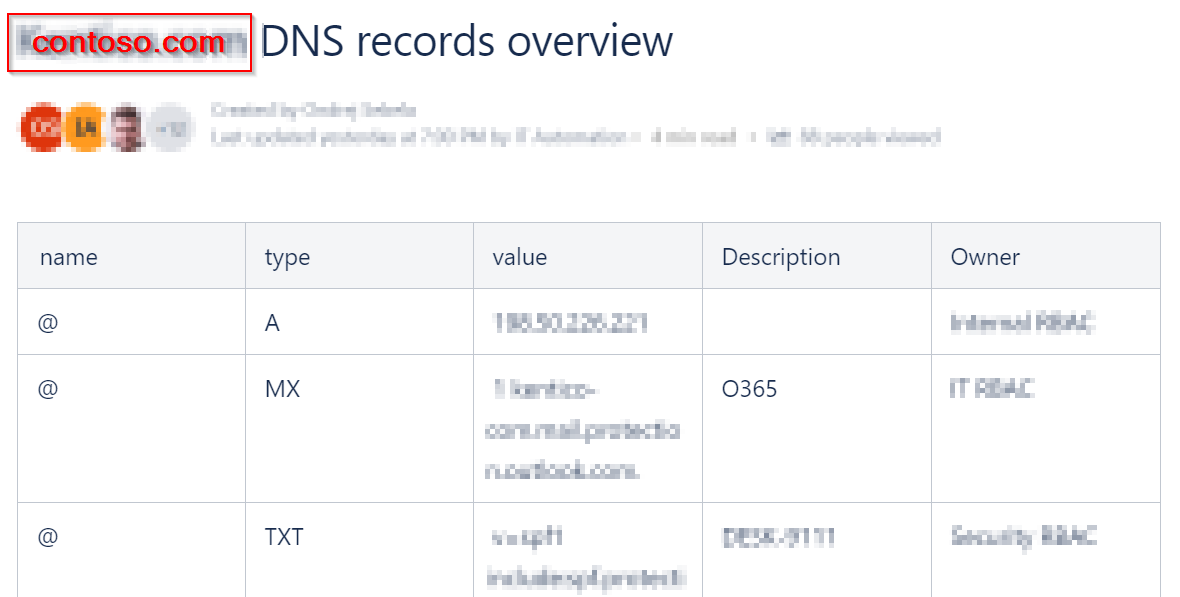
In this article I will show you, how to easily create, update and read HTML table on your company Confluence wiki page. This is very useful for reporting frequently changing information. We use it to generate overviews of VMs, DNS records, service accounts, distribution groups etc.
Table of Contents
- Prerequisites
- Connect to Confluence
- Create HTML table on Confluence page
- Get content of HTML table and convert it to PS object
- Update HTML table, retaining user defined content
Prerequisites
- Cloud hosted Confluence space
- PowerShell module ConfluencePS
- Use newest (2.5.1) version! Bug
Value was either too large or too small for an Int32is fixed there.
- Use newest (2.5.1) version! Bug
- Account with correct permissions to given Confluence page and its API key
- Password cannot be used to access Confluence API!
Connect to Confluence
Code bellow is essential to make connection to your Confluence space. So start with that.
# !MODIFY TO MATCH YOUR ORGANIZATION!
$baseUri = 'https://contoso.atlassian.net/wiki'

# !MODIFY TO MATCH THE PAGE YOU WANT TO WORK WITH!
# its the number part from page URL you want to work with https://contoso.atlassian.net/wiki/spaces/IT/pages/2920906911/Edge+Network+Overview
$pageID = "2920906911"

# confluence user account and its API key (NOT password!), that has appropriate permissions on given Confluence page
$confluenceCredential = Get-Credential -Message "Enter user login and his API key (NOT PASSWORD)"

Import-Module ConfluencePS

# authenticate to your Confluence space
Set-ConfluenceInfo -BaseURi $baseUri -Credential $confluenceCredential

Add-Type -AssemblyName System.Web
Create HTML table on Confluence page
Its quite easy process. You'll need PowerShell object, that will be converted to HTML table using native Confluence functions
ConvertTo-ConfluenceTableuses vertical line | as delimiter i.e. you have to replace such occurences for some other symbol, before you use this function!
# from PS objects generate Confluence HTML table
$body = Get-Process | ConvertTo-ConfluenceTable | ConvertTo-ConfluenceStorageFormat

# save the result back to confluence page
Set-ConfluencePage -PageID $pageID -Body $body
Get content of HTML table and convert it to PS object
To be able to convert HTML table to PS object, you have to:
- get the table content from page
- convert it using my function
_convertFromHTMLTable
The first part has to be done by making request via Invoke-WebRequest to Confluence rest api URL $baseUri/rest/api/content/$pageID?expand=body.storage. This ensures, that we will receive searchable HTML object and we will be able to use GetElementsByTagName() method to search the correct type of object (table in this case).
#region get data from confluence page
# authenticate to Confluence page
$Headers = @{"Authorization" = "Basic " + [System.Convert]::ToBase64String([System.Text.Encoding]::UTF8.GetBytes(($confluenceCredential.UserName + ":" + [System.Runtime.InteropServices.marshal]::PtrToStringAuto([System.Runtime.InteropServices.marshal]::SecureStringToBSTR($confluenceCredential.Password)) ))) }

# Invoke-WebRequest instead of Get-ConfluencePage to be able to use ParsedHtml
[Net.ServicePointManager]::SecurityProtocol = [Net.SecurityProtocolType]::Tls12
try {
    $confluencePageContent = Invoke-WebRequest -Method GET -Headers $Headers -Uri "$baseUri/rest/api/content/$pageID`?expand=body.storage" -ea stop
} catch {
    if ($_.exception -match "The response content cannot be parsed because the Internet Explorer engine is not available") {
        throw "Error was: $($_.exception)`n Run following command on $env:COMPUTERNAME to solve this:`nSet-ItemProperty -Path 'HKLM:\SOFTWARE\Microsoft\Internet Explorer\Main' -Name DisableFirstRunCustomize -Value 2"
    } else {
        throw $_
    }
}
#endregion get data from confluence page

# from confluence page get content of the first html table
$table = $confluencePageContent.ParsedHtml.getElementsByTagName('table')[0]
Second part (converting HTML object to PS object) is super easy. Just call my function _convertFromHTMLTable on $table like this:
function _convertFromHTMLTable {
    # function convert html object to PS object
    # expects object returned by (Invoke-WebRequest).parsedHtml as input
    param ([System.__ComObject]$table)

    $columnName = $table.getElementsByTagName("th") | % { $_.innerText -replace "^\s*|\s*$" }

    $table.getElementsByTagName("tr") | % {
        # per row I read cell content and returns object
        $columnValue = $_.getElementsByTagName("td") | % { $_.innerText -replace "^\s*|\s*$" }
        if ($columnValue) {
            $property = [ordered]@{ }
            $i = 0
            $columnName | % {
                $property.$_ = $columnValue[$i]
                ++$i
            }

            New-Object -TypeName PSObject -Property $property
        } else {
            # row doesn't contain <td>, its probably headline
        }
    }
}

# convert HTML table to PS object
$confluenceContent = @(_convertFromHTMLTable $table)
And voila $confluenceContent now contains PS object, with content of HTML table 👍.
Update HTML table, retaining user defined content
What to do, when you are in a situation, that you need to combine your data with user's input? For example, you are generating a table with DNS records for a specific domain hosted by your AWS Route53 registrator and you've requested your users to fill additional properties like description and owner to this table. Such situation is interesting because, when you overwrite the confluence page (because there is some new DNS record), you have to retain data filled by your users :)
So in this situation you have to:
- get the table content from confluence page
- convert it using my function
_convertFromHTMLTableto PS object for easy manipulation - get new data and merge them with user inputs extracted from PS object
- overwrite Confluence page with new merged data
The first two points are exactly the same as in section Get content of HTML table and convert it to PS object. The same goes for fourth point, because it will be inspired by Create HTML table on Confluence page.
The third point (merging new data with user inputs) can be tricky. Mainly if data doesn't contain unique identifier (such as DNS records). In such case you have to create a function, that will help you match the correct data together using multiple properties (name, value,...). So for sake of the DNS record example, you can use something like this
function _getCorrespondingData {
    # function returns matching DNS record (object) from Confluence table

    param ($item)

    $resultByName = $confluenceContent | ? { $_.Name -eq $item.Name -and $_.Type -eq $item.Type }
    $resultByValue = $confluenceContent | ? { $_.Value -eq $item.Value -and $_.Type -eq $item.Type }
    $resultByNameAndValue = $confluenceContent | ? { $_.Name -eq $item.Name -and $_.Value -eq $item.Value -and $_.Type -eq $item.Type }

    if ($resultByNameAndValue) {
        if ( @($resultByNameAndValue).count -eq 1) {
            return $resultByNameAndValue
        } else {
            throw "There are multiple rows with same name '$($item.Name)' and value '$($item.Value)' of type '$($item.Type)' on $atlassianPage. Page sync cannot continue until you solve this duplicity."
        }
    }

    if ($resultByName -and @($resultByName).count -eq 1) {
        return $resultByName
    }
    if ($resultByValue -and @($resultByValue).count -eq 1) {
        return $resultByValue
    }

    Write-Warning "DNS record with name '$($item.Name)', value '$($item.Value)' and type '$($item.Type)' wasn't found on $atlassianPage.`nIt's new record or there was change of name or value in the existing one, that removed possibility to uniquely identify it.`n`nOwner and description will be therefore `$null."
}
So we know, how to get matching data, but of course, we need to also receive new DNS data from our registrant! How to do this for AWS Route 53 is described in following section.
Anyway resultant script will look like this fill_confluence_table_with_aws_dns_records.ps1
How to retrieve DNS records for a specific domain from AWS Route 53?
Check my post How to retrieve DNS records for a specific domain in AWS Route 53 via PowerShell
And this is it. Now you should be able to get/set/create HTML table on any HTML page. Not just Confluence. Hope you like it 👍
About the author
I work as System Administrator for more than 15 years now and I love to make my life easier by automating work & personal stuff via PowerShell (even silly things like food recipes list generation).
Comments
Join the discussionNo comments yet. Be the first to comment.


