
Easy removal of preinstalled bloatware using PowerShell
I work as System Administrator for more than 15 years now and I love to make my life easier by automating work & personal stuff via PowerShell (even silly things like food recipes list generation).
Recently I came into a situation where I needed to provision new Dell Precision laptops for our employees. This laptop comes with a lot of preinstalled applications (bloatware) so I was looking for some simple but efficient way to silently remove them. And by efficient I mean avoiding the need to manually find an uninstall command for each preinstalled application.
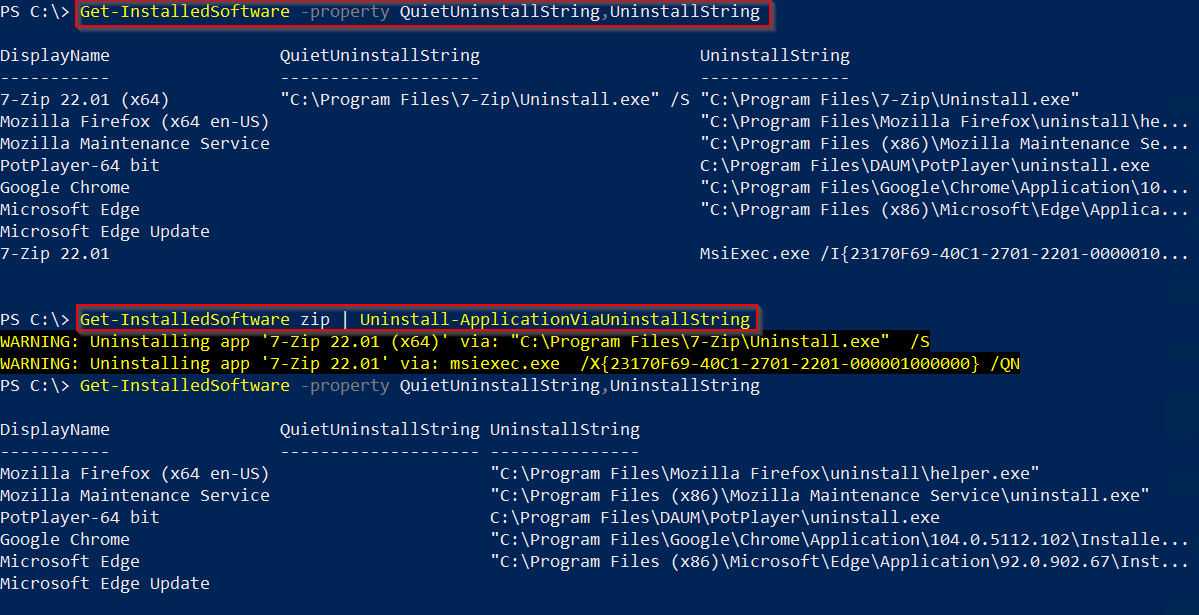
As always PowerShell and registry property QuietUninstallString were my saviors 😉.
TL;DR
Use function Get-InstalledSoftware and Uninstall-ApplicationViaUninstallString functions from my CommonStuff PS module like 👇
# Uninstall every application that has 'Dell' in its name.
Get-InstalledSoftware -appName Dell | Uninstall-ApplicationViaUninstallString
Find silent uninstall command the smart way
As you probably know, a list of installed applications is stored in two registry keys: HKLM:\SOFTWARE\Microsoft\Windows\CurrentVersion\Uninstall, HKLM:\SOFTWARE\Wow6432Node\Microsoft\Windows\CurrentVersion\Uninstall.
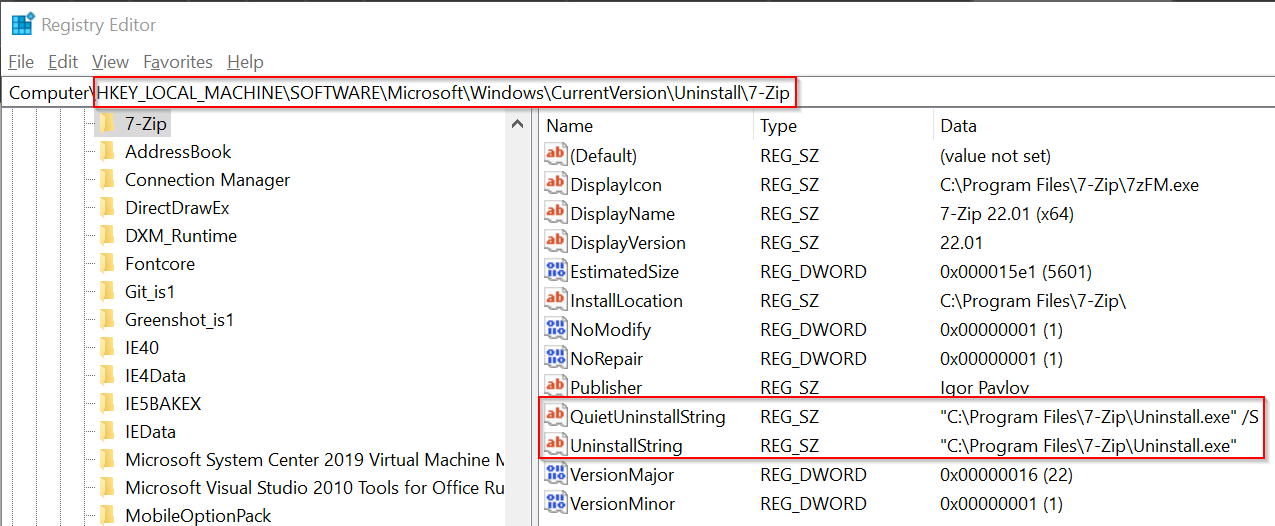
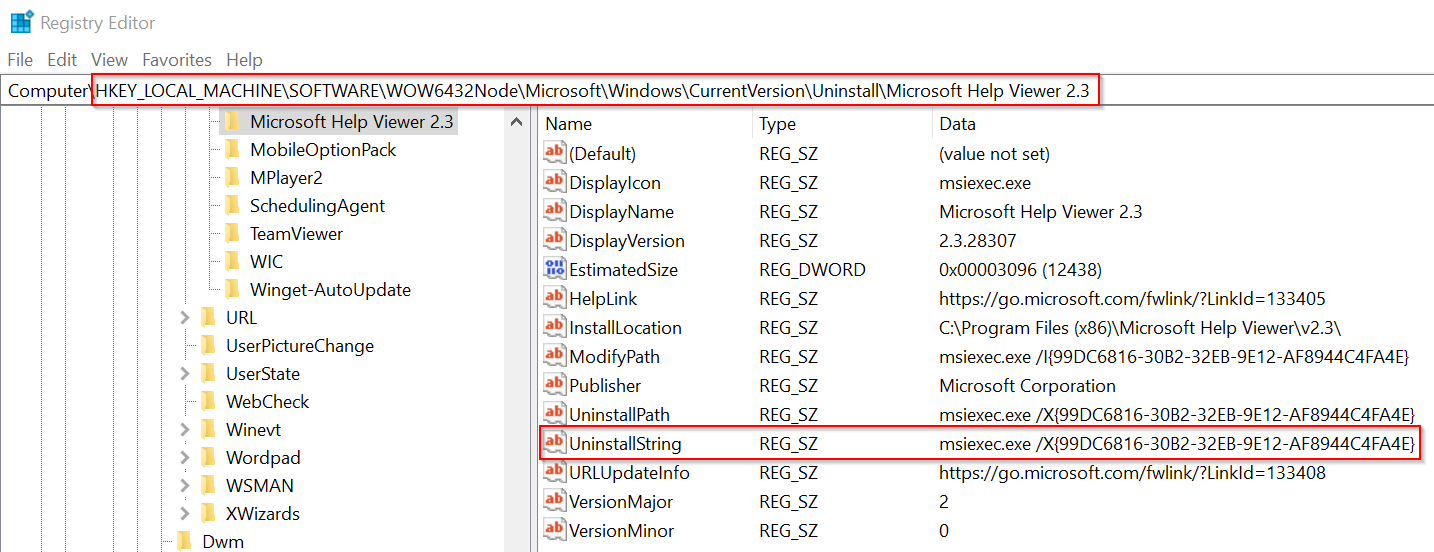
What you might not know is that almost every application that is stored there has defined properties QuietUninstallString and/or UninstallString. Applications installed via EXE have typically both these properties but MSI have just UninstallString.
EXE installed application 👇
MSI installed application 👇
Drawbacks of this solution
- Sometimes for MSI installed applications
UninstallStringproperty contains/Iinstead of/Xparameter (/Imeans 'install' and/Xmeans 'uninstall') - Some EXE application (like "Dell Optimizer Service") has the
QuietUninstallStringproperty but when used, it normally runs uninstall wizard GUI. Hence there is no guarantee thatQuietUninstallStringwill really start silent uninstallation 😞.- To help with that I've added the parameter
addArgumentto theUninstall-ApplicationViaUninstallStringfunction (in the case of the "Dell Optimizer Service" application mentioned before I've added-silentparameter to the uninstall command).
- To help with that I've added the parameter
Summary
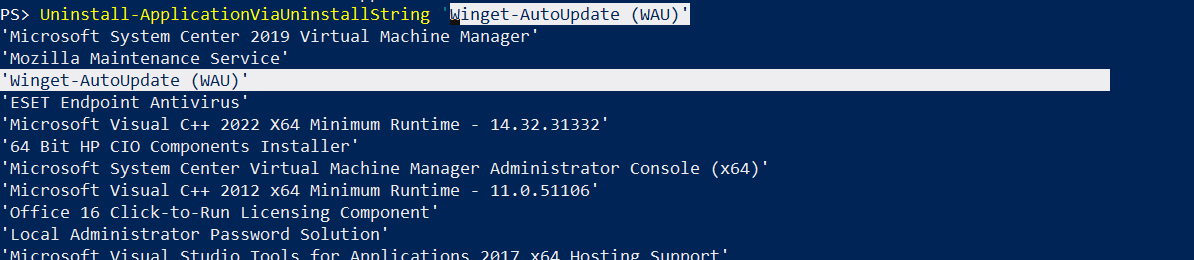
With the information above in mind, I've created two functions that work together: Uninstall-ApplicationViaUninstallString and Get-InstalledSoftware. Both of them can be found in my CommonStuff PS module and be used like this 👇.
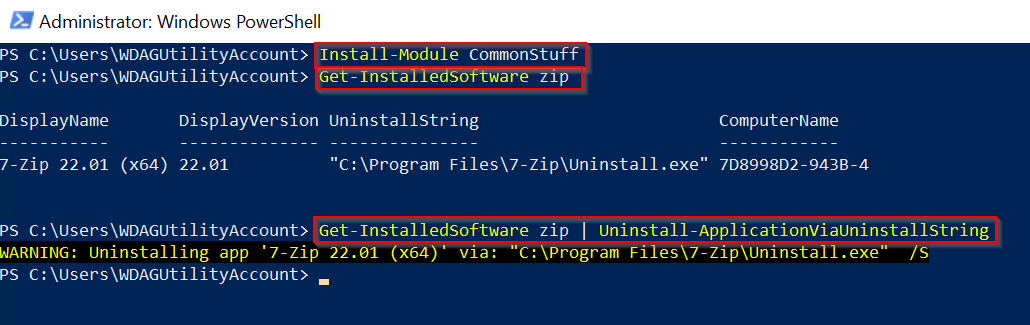
Both also support TAB-completion, so it is super easy to get the app name.
Just in case you are curious, my final solution for the Dell Precision laptops looks like this:
$SWName = Get-InstalledSoftware "Dell", "Microsoft Update Health Tools", "ExpressConnect Drivers & Services" | ? DisplayName -NotLike "Dell Command | Update for Windows*" | select -ExpandProperty DisplayName

if ($SWName) {
    try {
        $SWName | % {
            $param = @{
                Name        = $_
                ErrorAction = "Stop"
            }

            if ($_ -eq "Dell Optimizer Service") {
                # uninstallation isn't unattended without -silent switch
                $param.addArgument = "-silent"
            }

            Uninstall-ApplicationViaUninstallString @param
        }
    } catch {
        Write-Error "There was an error when uninstalling bloatware: $_"
    }
} else {
    "There is no bloatware detected"
}


