
Today, I’ll guide you through setting up an automation system that notifies your users about vulnerable software detected on their devices. This information will be sourced from the Microsoft Defender API.
In this post, I’ll demonstrate how to create this automation within your Azure tenant and provide all the necessary PowerShell code.
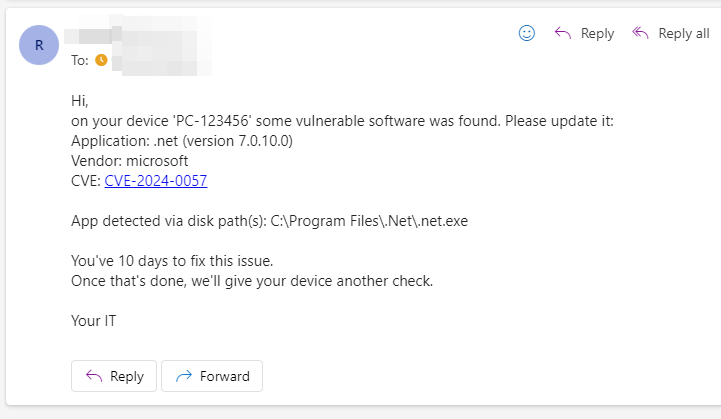
Below is an example of the email your user will receive if a vulnerable .NET app is found on their device 👇
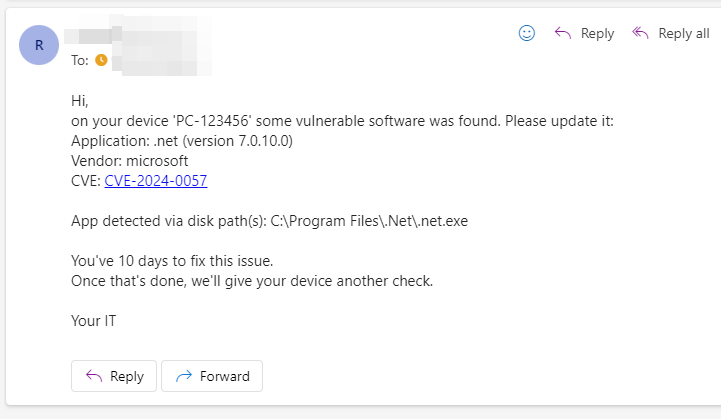
As shown, the email includes a list of vulnerable apps, their versions, clickable CVEs, and details on how each app was detected.
But why should we make users update their apps in the first place?
Users can install software on their own avoiding any interruptions
Automatic update of the app can cause compatibility issues
- this applies mostly to developer tools like Visual Studio, Python, .Net, NodeJS, etc
These are some of the reasons why involving your users in the app update process can be necessary.
But just informing the users without any sort of "punishment" wouldn't be sufficient. That is the reason why we are sending a second email in case the user doesn't fix the issue in time. This second email can be sent to the user manager, security team, etc. Or another more brutal approach can be chosen like isolating the device 😎.
Summary
After you finish this tutorial you will have:
Azure Automation that will monitor vulnerabilities on company devices and send email notifications based on the set thresholds to the device owner
first email by default 30 days after the first vuln. detection
- TIP: A list of apps that should trigger immediate notification is supported
second email by default 14 days after the first one
(optional) Azure KeyVault that will safely store SendGrid API key
Azure Storage blob that will be used as persistent storage for Azure Automation runbook
Prerequisites
License for 'Microsoft Defender Vulnerability Management'
Permission to create Azure Automation and assign required Microsoft Defender for Endpoint API permissions
Willing to pay 1$/month for required Azure services (Storage, Automation, and KeyVault)
- Or rewrite the code and host it on-premises for free
SendGrid account (API token) for sending notification emails
- Runbook code can be customized to use any SMTP service, sending Teams messages, etc.
Let's go
Create Automation Account
Create a new Automation Account named VulnerableApps.
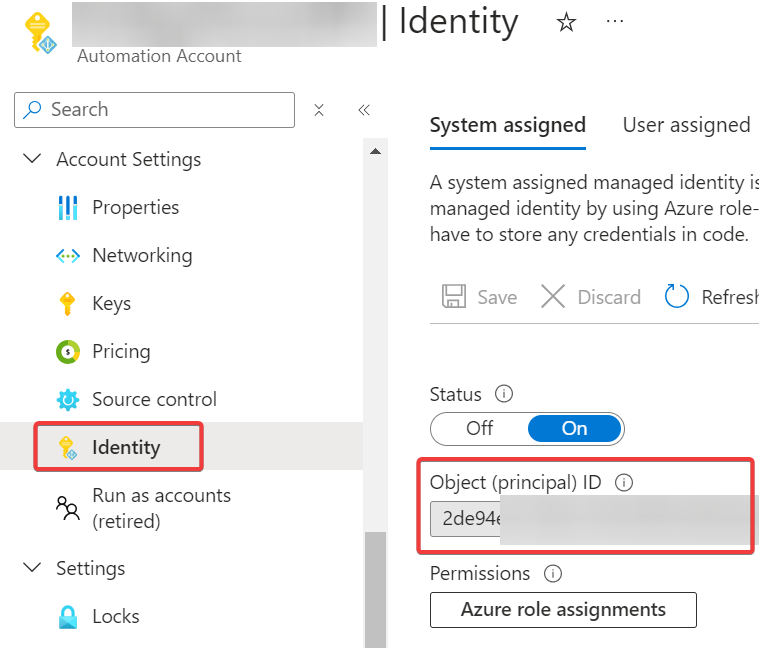
Make a note of the ID of the automatically created System Managed Identity. You will need it later when granting permission.
Create a Runbook
Inside the Automation Account create a new PowerShell 5.1 Runbook and copy-paste code from my VulnerableApps.ps1 script
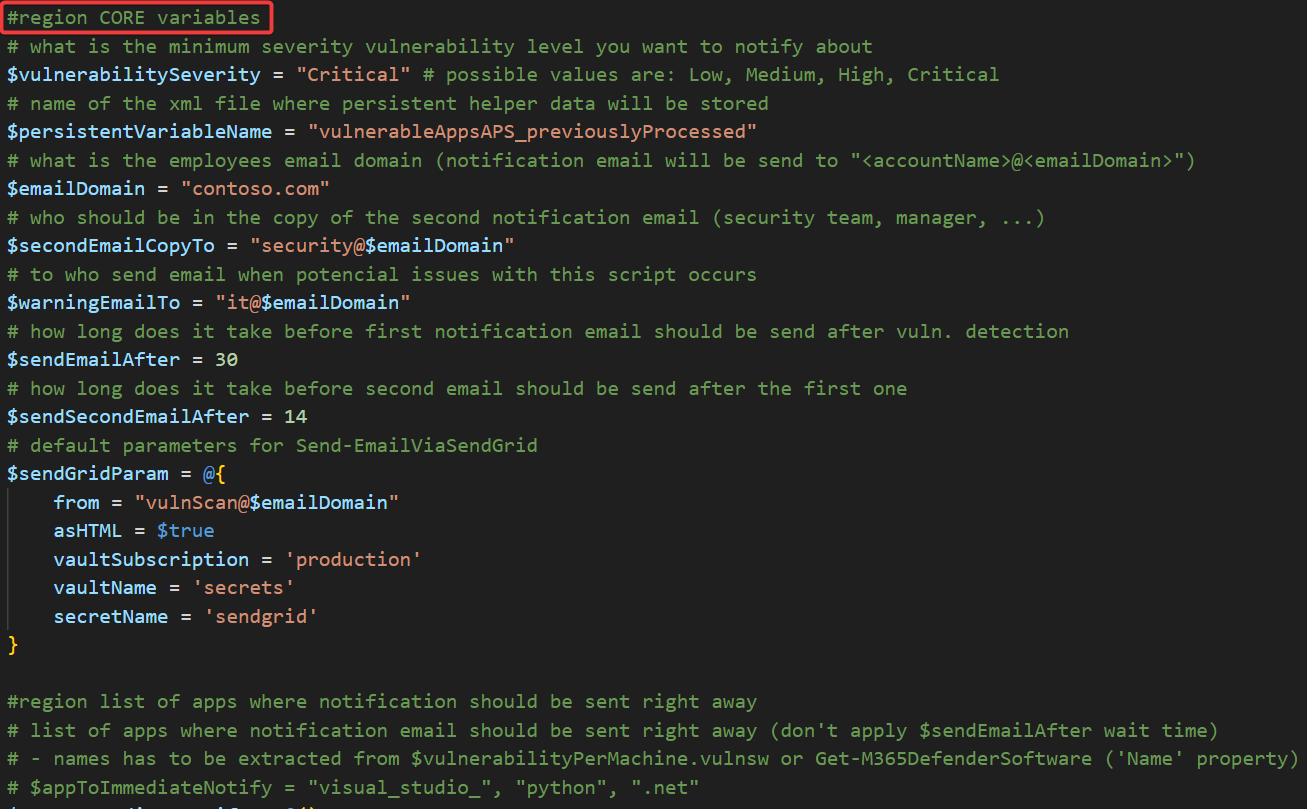
Now modify #region CORE variables section to suit your environment and save the result!
$sendGridParam has to contain values set in the section Create Azure KeyVault for storing SendGrid API key.
Grant required permissions for accessing Microsoft Defender API
In order for our automation to be able to read data from the Microsoft Defender API, it is necessary to assign it the following WindowsDefenderATP permissions:
User.Read.AllSecurityRecommendation.Read.AllAlert.Read.AllSoftware.Read.AllVulnerability.Read.AllMachine.Read.AllAdvancedQuery.Read.All
You can do it easily using my function Grant-AzureServicePrincipalPermission (part of the AzureApplicationStuff module) or manually in the Azure portal
# example code, you need to adjust it to match your environment!

Connect-AzAccount

Grant-AzureServicePrincipalPermission -servicePrincipalId 'yourManagedIdentityId' -permissionType application -permissionList 'User.Read.All','SecurityRecommendation.Read.All','Alert.Read.All','Software.Read.All','Vulnerability.Read.All','Machine.Read.All','AdvancedQuery.Read.All' -resourceAppId 'fc780465-2017-40d4-a0c5-307022471b92'
Import required modules
Runbook code depends on several other modules that I've created, so in order for it to work, we need to import them into our Automation Account environment.
Required modules:
AzureResourceStuffM365DefenderStuffCommonStuffPSSendGrid
You can do it easily using my function New-AzureAutomationModule or New-AzureAutomationRuntimeModule in case you are using Runtime Environments (both functions are part of the AzureResourceStuff module) which has a huge benefit of importing but just required modules, but also their required dependencies 👍.
Or you can import the modules manually in the Automation account settings.
# example code, you need to adjust it to match your environment!

Connect-AzAccount -Tenant "contoso.onmicrosoft.com" -SubscriptionName "AutomationSubscription"

'AzureResourceStuff','M365DefenderStuff','CommonStuff','PSSendGrid' | % {
    New-AzureAutomationModule -resourceGroupName XXX -automationAccountName YYY -moduleName $_
}
New-AzureAutomationModule works, check this articleCreate an Azure Storage Account for storing Runbook persistent data
Because Azure Automation Runbook doesn't have the option to store complex persistent data, we need to store such data in Azure Blob storage.
In the subscription where you host your Runbook please create the following structure:
Resource Group Name named
PersistentRunbookVariablesIn that group create a Storage Account named
persistentvariablesstore- In that Storage Account create a container named
variables
- In that Storage Account create a container named
Export-VariableToStorage and Import-VariableFromStorage functionsGrant Runbook Managed Identity permissions to the Azure Storage Account container
Grant our Managed Identity Storage Blob Data Contributor IAM role over Storage Account container created in the previous step. So it can modify files in this container.
Create Azure KeyVault for storing SendGrid API key
For sending emails via SendGrid I am using my function Send-EmailViaSendGrid. This function supports retrieval of the SendGrid API key directly from Azure KeyVault, which is an ideal solution for Azure Automations.
The only thing you have to do is to create such a secret in the existing KeyVault (or some newly created one) and set $sendGridParam hashtable values accordingly in your Runbook code.
Grant Runbook Managed Identity permissions to read stored SendGrid token
Grant our Managed Identity Key Vault Secrets User IAM role over the created secret to allow it to read it.
Gotchas
Defender vulnerability report doesn't have to be 100% accurate, because if app is incorrectly uninstalled therefore some registry keys or files remain on the device disk, Defender can still detect it even though the app isn't installed. In such rare cases, you need to manually remove some leftovers.
If you use MDT for software installation, apps are installed under a built-in administrator account, which can lead to situations where the vulnerable app is detected in the built-in administrator profile/registry! This can be a significant problem for your users because it can be hard for them to remove such leftover data.
This can be solved by removing the built-in admin profile (not the account, just the profile data). For example, using Intune remediation script and PSH code
Get-CimInstance -Class Win32_UserProfile | ? { $_.SID -like "*-500" } | Remove-CimInstance
Tips
Inform your users about those notifications beforehand! So they don't consider them as a scam 😀
You can exclude the specific application from this notification automation, for example, because it is the last existing version, so your users cannot update it anyway
Just update the
$exclusionListvariable in the automation code<# - 'CveId' and/or 'ProductName' property/ies (string) have to be defined - 'ProductVersion' (string) is optional - property values can be extracted from $vulnerabilityPerMachine.vulnswdata - 'ValidUntil' (datetime) is optional (since this date, exclustion will be ignored) - BEWARE that in Azure pipeline EN date has to be used a.k.a. month.day.year!!! #> $exclusionList = @( [PSCustomObject]@{ CveId = 'CVE-2024-32002' ProductName = 'visual_studio_2022' ValidUntil = (Get-Date 8.1.2024) # M.d.yyyy } )
Check this article if you want to update all installed applications gradually using Winget
- exceptions can be made
If your helpdesk interactively logs in to employees' computers, you can avoid identifying such accounts as device owners by altering the following line of code in the runbook
$user = Get-M365DefenderMachineUser -header $header -machineId $machineId | ? { $_.logonTypes -like '*Interactive*' -and $_.accountName -ne "administrator" }
About the author
I work as System Administrator for more than 15 years now and I love to make my life easier by automating work & personal stuff via PowerShell (even silly things like food recipes list generation).
Comments
Join the discussionThanks


